
1. Úvod
This user manual provides comprehensive instructions for the Supermicro X5DA8 motherboard. It covers essential information regarding installation, configuration, operation, and troubleshooting to ensure optimal performance and longevity of your system. Please read this manual thoroughly before installing or operating the motherboard.
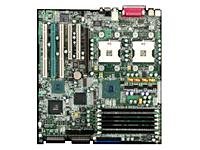
Obrázek 1: Supermicro X5DA8 Motherboard. This image displays the overall layout of the Supermicro X5DA8 motherboard, highlighting key components such as the CPU sockets, memory slots, and expansion slots.
2. Nastavení a instalace
2.1. Obsah balení
Ověřte, zda jsou v balení základní desky přítomny všechny komponenty:
- Supermicro X5DA8 Motherboard
- I / O štít
- SATA/IDE Cables (quantity may vary)
- CD/DVD s ovladači
- Průvodce rychlou instalací
2.2. Instalace hardwaru
- Příprava podvozku: Ensure your computer chassis is compatible with ATX form factor motherboards. Install the I/O shield into the chassis opening.
- Instalace základní desky: Carefully align the motherboard with the standoffs in the chassis. Secure it with screws, ensuring not to overtighten.
- Install CPUs: The X5DA8 supports dual Intel Xeon processors (Socket 604). Open the CPU socket retention mechanism, align the processor with the socket key, gently place it, and close the retention mechanism. Apply thermal paste and install the CPU coolers.
- Instalace paměti (RAM): This motherboard supports DDR RAM. Insert DDR memory modules into the available 6 memory slots. Ensure the modules are correctly oriented and firmly seated until the clips lock into place.
- Instalace rozšiřujících karet: Insert PCI graphics cards or other expansion cards into the appropriate PCI slots. Secure them with the chassis retention clips or screws.
- Připojte napájecí zdroj: Connect the 24-pin ATX main power connector and the 8-pin (or 4-pin) ATX 12V CPU power connector from your power supply to the motherboard.
- Připojení úložných zařízení: Connect SATA or IDE cables from your storage drives (hard drives, SSDs, optical drives) to the corresponding ports on the motherboard. Connect power cables from the power supply to these devices.
- Připojení kabelů předního panelu: Connect the front panel connectors (power button, reset button, HDD LED, power LED, USB ports, audio jacks) to the corresponding headers on the motherboard. Refer to the motherboard layout diagram for exact pin assignments.
3. Návod k obsluze
3.1. Počáteční spuštění
After completing hardware installation, connect a monitor, keyboard, and mouse. Power on the system. The system will perform a Power-On Self-Test (POST). If successful, the BIOS screen will appear.
3.2. Konfigurace systému BIOS
Chcete-li vstoupit do nástroje pro nastavení systému BIOS, stiskněte klávesu DEL key during POST. The BIOS allows you to configure system settings such as boot order, CPU settings, memory timings, and integrated peripherals. Save changes before exiting the BIOS.
3.3. Instalace ovladače
After installing your operating system (e.g., Windows 10), install the necessary drivers for the motherboard components. Use the provided driver CD/DVD or download the latest drivers from the Supermicro official website. Install drivers for chipset, LAN, audio, and any other integrated devices.
4. Údržba
4.1. Čištění
Regularly clean the interior of your computer chassis to prevent dust buildup, which can lead to overheating. Use compressed air to remove dust from fans, heatsinks, and motherboard components. Ensure the system is powered off and unplugged before cleaning.
4.2. Aktualizace BIOSu
Pravidelně kontrolujte Supermicro website for BIOS updates. BIOS updates can improve system stability, add support for new hardware, or fix known issues. Follow the instructions provided by Supermicro carefully when performing a BIOS update to avoid system damage.
4.3. Aktualizace ovladačů
Keep your system drivers updated. Outdated drivers can cause performance issues or instability. Download the latest drivers from the Supermicro website or the respective component manufacturers.
5. Řešení problémů
5.1. Bez napájení
- Check if the power supply is properly connected to the motherboard (24-pin ATX and 8-pin/4-pin CPU power).
- Ujistěte se, že je vypínač napájení v poloze „ON“.
- Ověřte, zda je kabel tlačítka napájení na předním panelu správně připojen ke konektoru základní desky.
5.2. Žádný displej
- Ujistěte se, že je monitor připojen a zapnutý.
- Reseat the graphics card in its PCI slot.
- Zkuste jinou grafickou kartu nebo monitor, pokud je k dispozici.
- Check if memory modules are properly seated.
5.3. Nestabilita/pády systému
- Check CPU and system temperatures. Ensure cooling solutions are functioning correctly.
- Spusťte diagnostické nástroje paměti a zkontrolujte, zda nejsou vadné moduly RAM.
- Ujistěte se, že všechny ovladače jsou aktuální.
- Ověřte stabilitu a výkon napájenítage.
6. Specifikace
Key technical specifications for the Supermicro X5DA8 Motherboard:
| Funkce | Specifikace |
|---|---|
| Značka | Supermikro |
| Číslo modelu | MBD-X5DA8-O |
| Zásuvka CPU | Socket 604 (Dual) |
| Kompatibilní procesory | Intel Xeon |
| Typ čipové sady | Intel E7505 |
| Technologie paměti RAM | DDR |
| K dispozici paměťové sloty | 6 |
| Maximální kapacita paměti | 12 GB (as per product data, actual max may vary by module size) |
| Rozhraní grafické karty | PCI |
| Podporovaný standard systémové sběrnice | SATA 3 (Note: May also support IDE/SCSI depending on specific revision) |
| Typ konektoru S/PDIF | Optický |
| Kompatibilní zařízení | Server |
| Platforma | Windows 10 (OS compatibility) |
| Hmotnost položky | 8 libry |
| UPC / GTIN | 672042882076 |
7. Záruka a podpora
Specific warranty terms and support information for the Supermicro X5DA8 motherboard are typically provided with the product packaging or available on the official Supermicro website. Please refer to the manufacturer's website or the documentation included with your purchase for the most accurate and up-to-date warranty details and technical support contacts.
For technical assistance, driver downloads, or BIOS updates, visit the official Supermicro support portal.